
🔥 Experience everything we offer — $99 for your first two weeks. Start Trial ->
Using the Video Review Tool (Feedback & Revisions)
Use the Indiedoers video review tool to leave timestamped feedback and request revisions. Better communication means fewer revision rounds.
Written By: Divy pratap
Gone are the days of sending long emails with confusing timestamps like "at 2:04, can you change the color?"
IndieDoers includes a built-in Video Review Tool that allows you to watch your drafts and leave frame-accurate feedback directly on the video. This ensures our editors know exactly what you want fixed.
1. The Review Interface
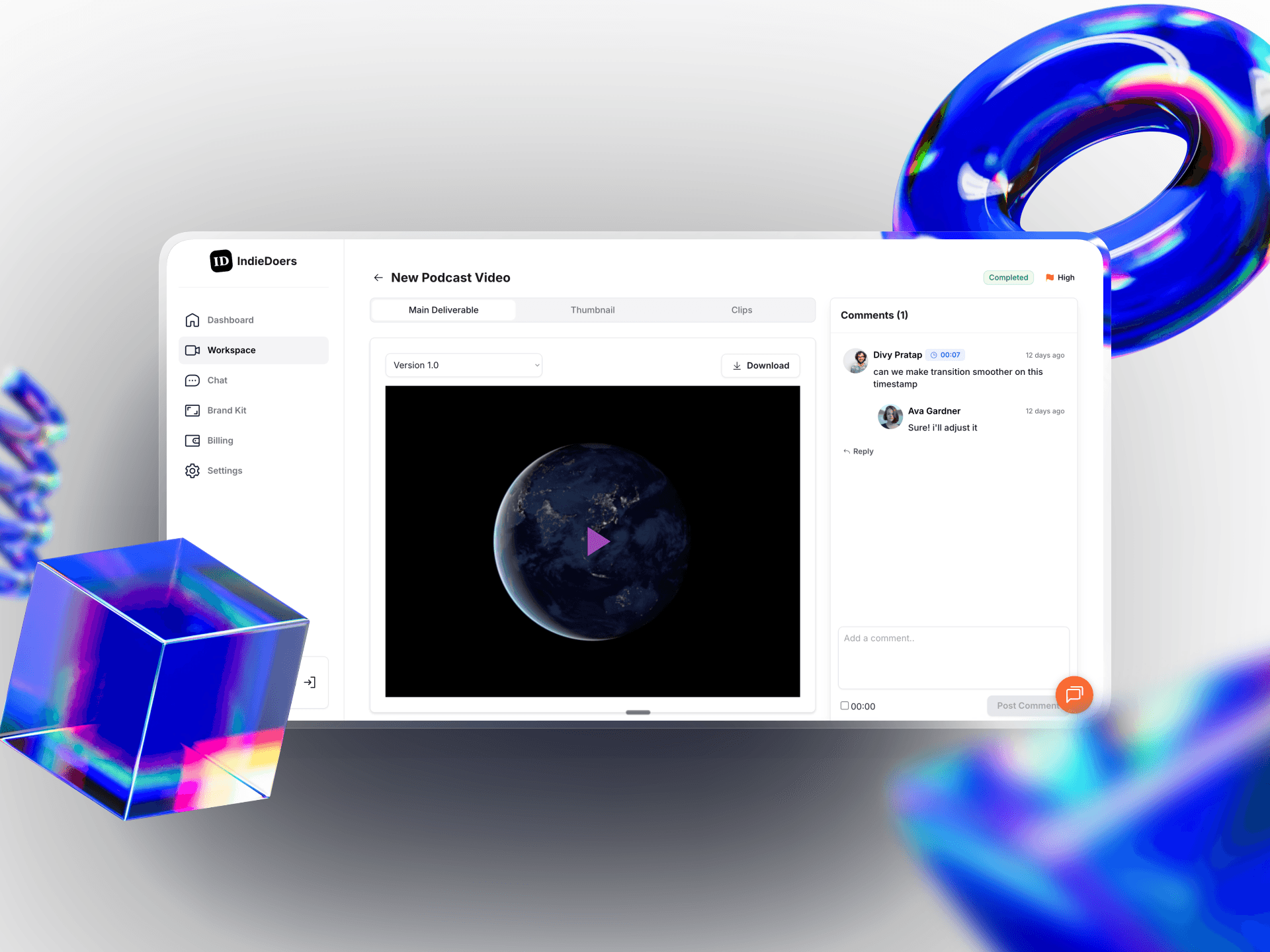
When you click on a request in your Workspace, you will see the video player in the center and a comment panel on the right.
Asset Tabs: If you ordered add-ons, you will see tabs at the top of the player. You can switch between reviewing the Main Deliverable, the Thumbnail, or your Clips without leaving the page.
Version Control: The dropdown menu (e.g., "Version 1.0") allows you to flip back to previous versions to compare changes.
Download: If you are happy with the work, click the Download button in the top right of the player to save the file immediately.
2. How to Leave Comments
To request a change, you don't need to write a separate document.
Play the Video: Watch the draft in the player.
Pause & Type: When you see something you want to change, simply pause the video.
Write Comment: Type your feedback in the "Add a comment" box on the bottom right.
Automatic Timestamp: The system automatically grabs the exact timecode (e.g.,
00:07) and attaches it to your comment.Why this helps: Your editor can click your comment and jump instantly to that specific frame to see exactly what you are talking about.
Post: Click Post Comment to save it.
3. Discussing with Your Editor
The comment section acts like a chat thread.
Replies: Your editor can reply directly to your notes (e.g., "Sure! I'll adjust it") so you know your feedback has been seen.
Clarity: This keeps all revision conversations "threaded" next to the specific issue, preventing miscommunication.