
This guide will show you around your new account. We will look at where to find your videos, check your credits, and talk to your team.
Here is what each section does.
1. The Dashboard (Your Home Base)
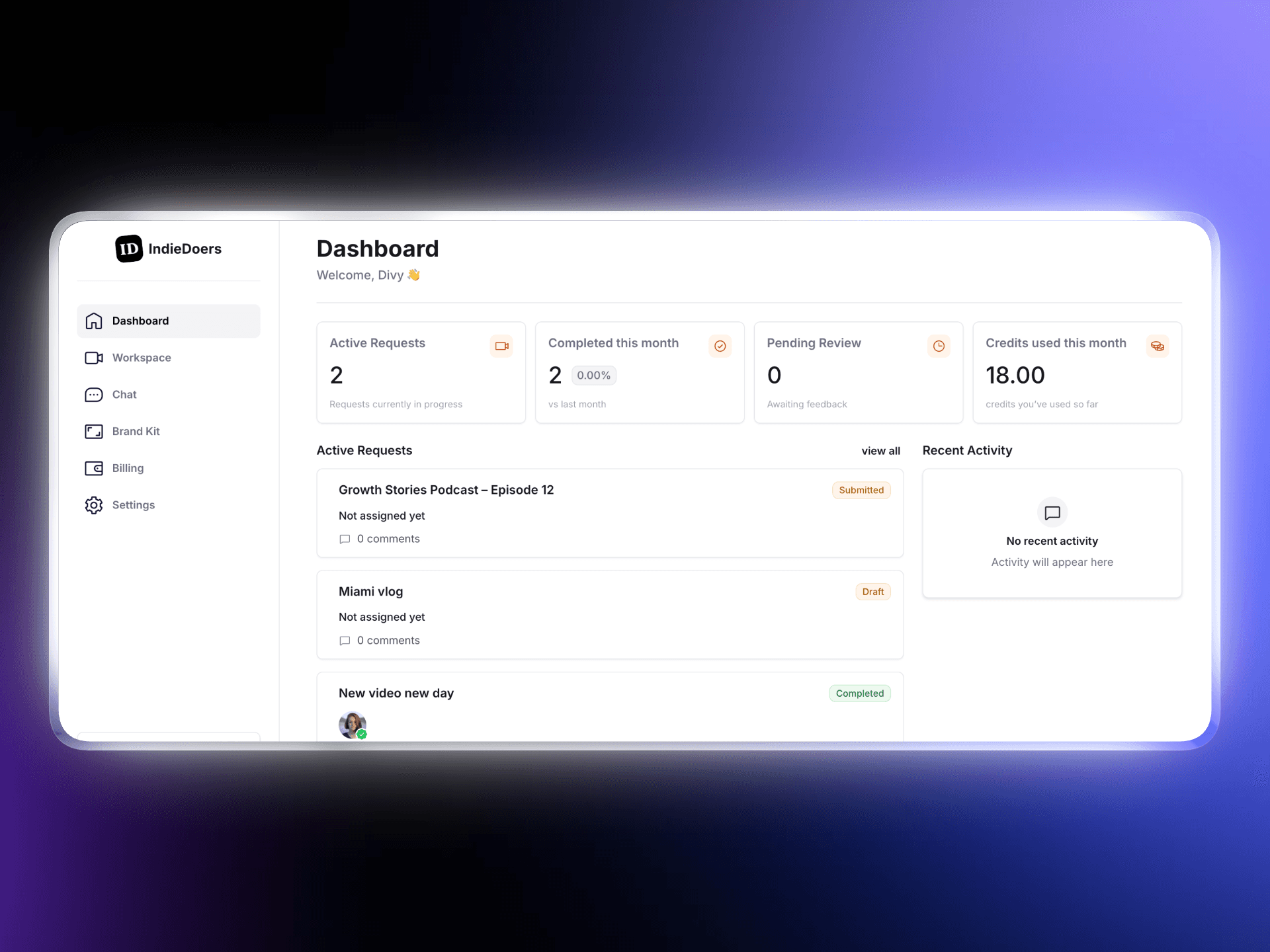
When you log in, you land on the Dashboard. This is your main overview.
Quick Stats: At the top, you can see how many requests are active, how many are finished, and how many credits you have used this month.
Active Requests: This list shows the videos we are working on right now.
Recent Activity: On the right, you can see recent updates or notifications.
2. Workspace (Your Project List)
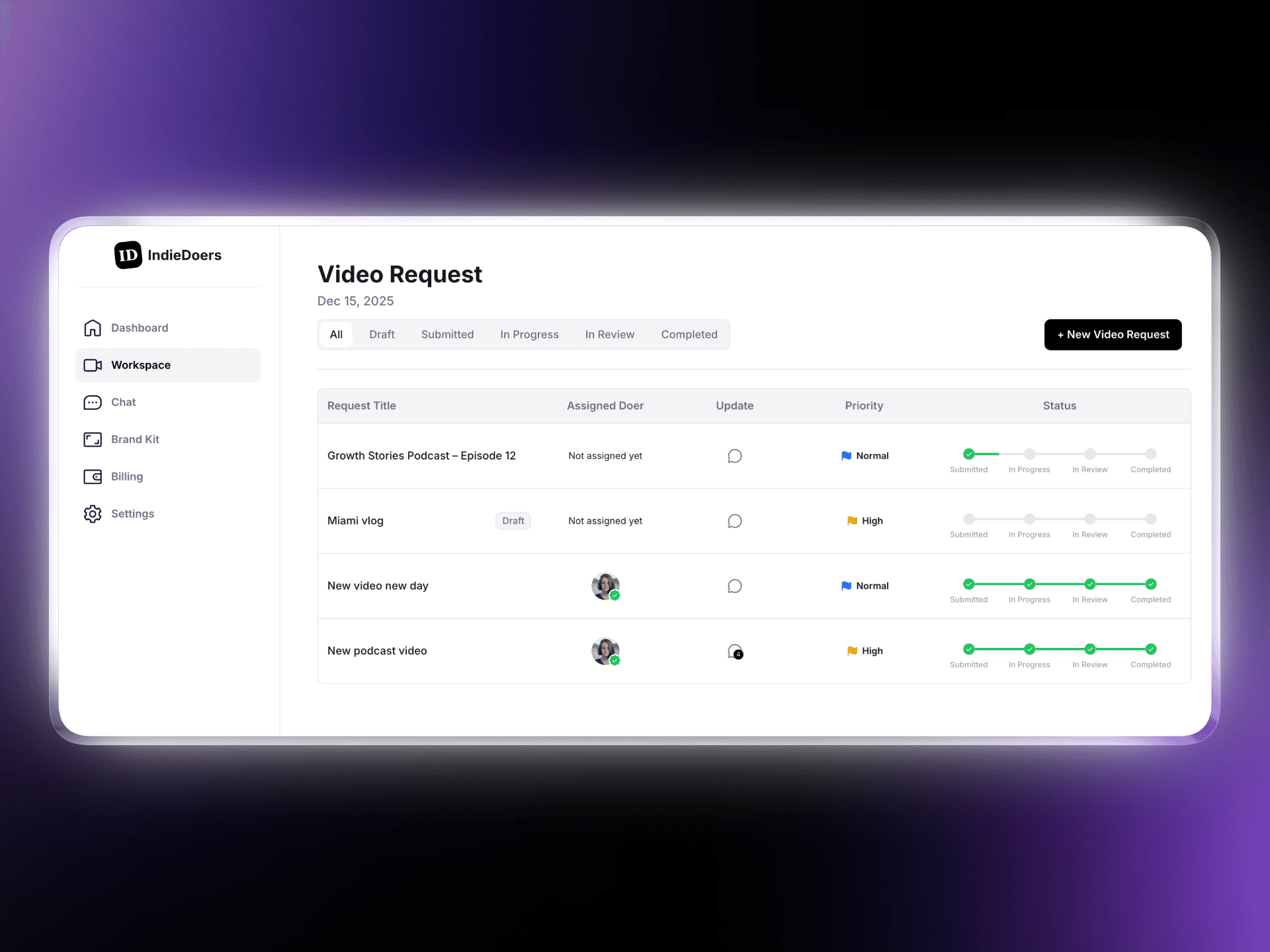
Click on Workspace in the left menu. This is where you manage your tasks.
See All Projects: You can see every video request you have made in a simple list.
Check Status: Look at the "Status" column on the right. It shows a progress bar so you know if your video is Submitted, In Progress, or ready for Review.
Who is Working? The "Assigned Doer" column shows you which editor is handling your video.
Filters: Use the tabs at the top to see only "Completed" videos or "Drafts" you haven't sent yet.
3. Billing & Credits (Your Budget)
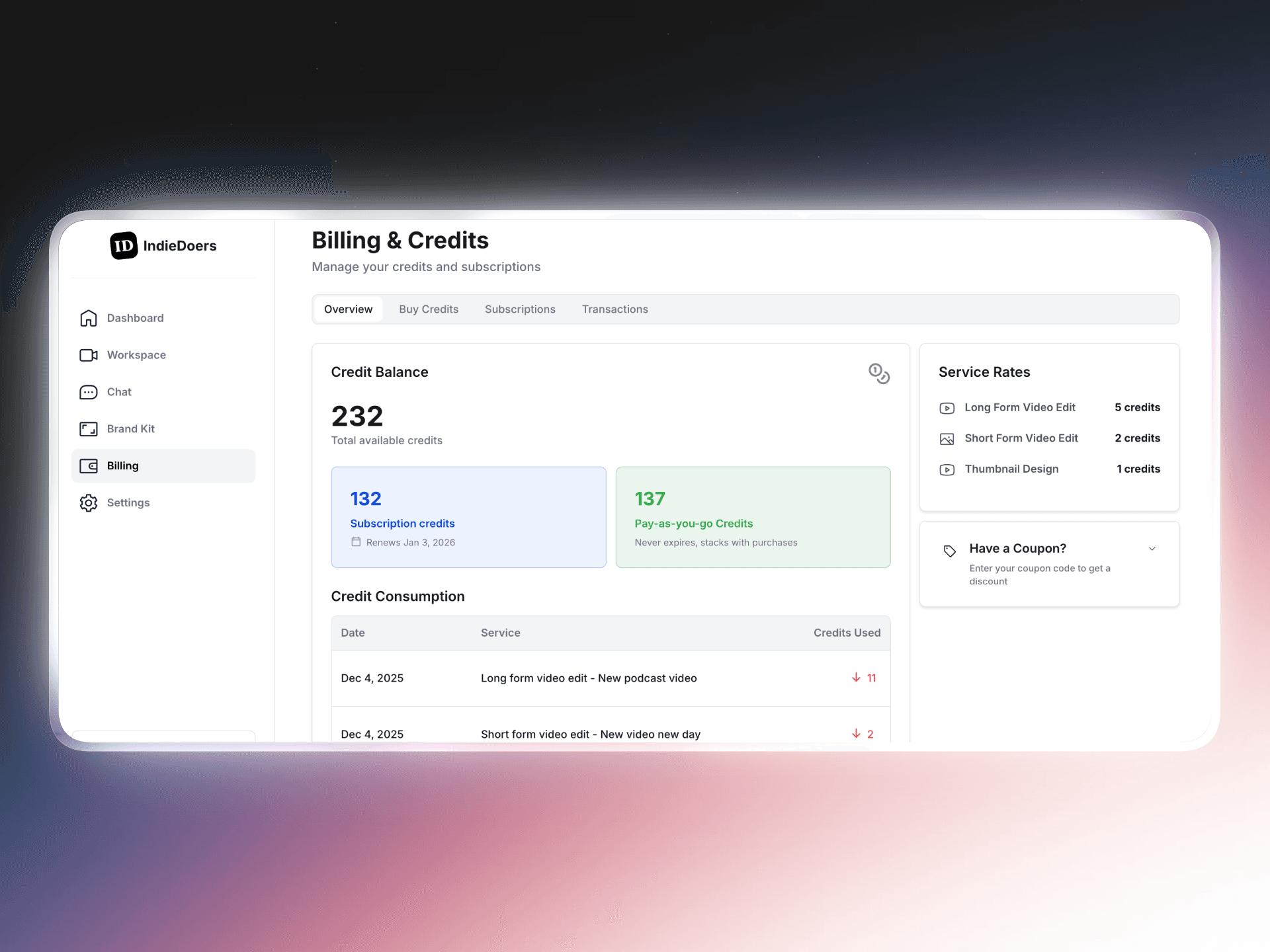
Click on Billing to manage your money and credits.
Credit Balance: The big number shows how many total credits you have left to spend.
Credit Types: We split your credits into two boxes:
Subscription credits: These renew every month (check the date to see when).
Pay-as-you-go Credits: These never expire.
Service Rates: On the right side, you can see a cheat sheet of how much each task costs (like 5 credits for a Long Form edit).
4. Brand Kit
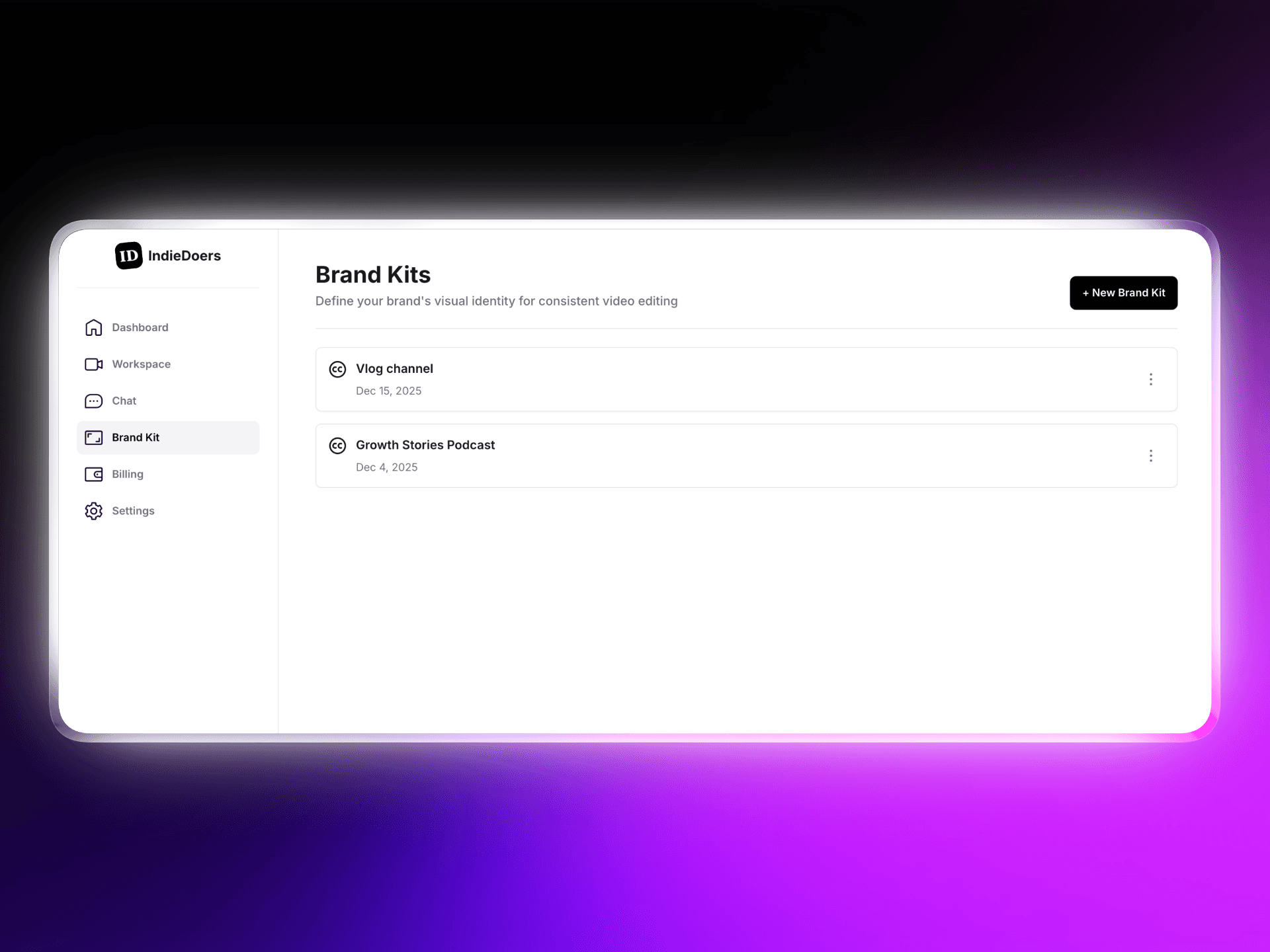
This is where you store your logos and colors. You can create different kits for different projects, like one for a "Vlog channel" and another for a "Podcast". This keeps your branding organized.
5. Chat
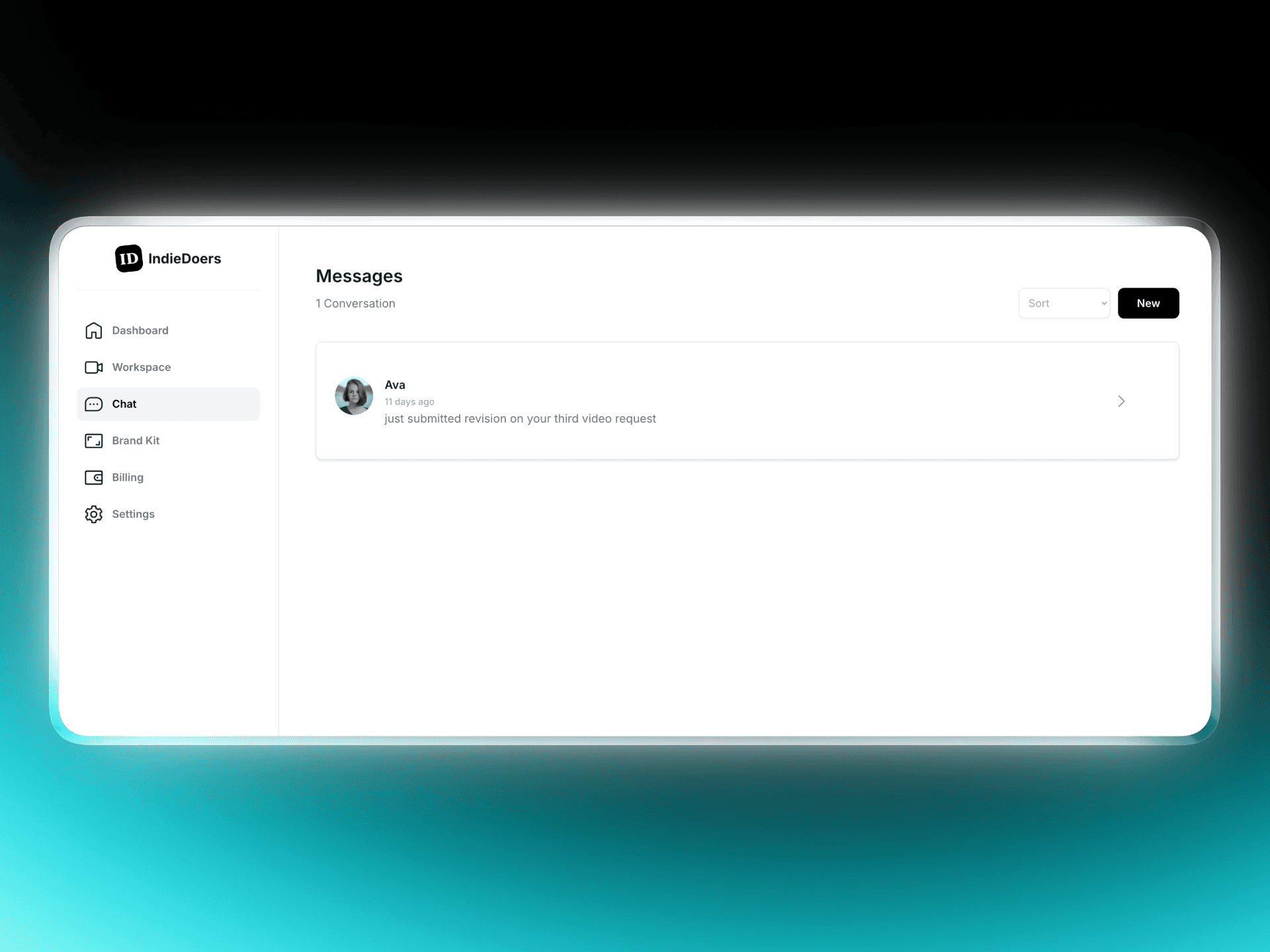
Click on Chat to talk to us. You will see a list of conversations with your editors. If an editor has a question about your video, it will appear here.