
At IndieDoers, "Credits" are the currency used to get your videos edited. Whether you are on a monthly subscription or just topping up for a one-off project, knowing how to manage your balance is key to an uninterrupted workflow.
Here is how to check your funds, track your spending, and purchase more credits.
1. Checking Your Current Balance
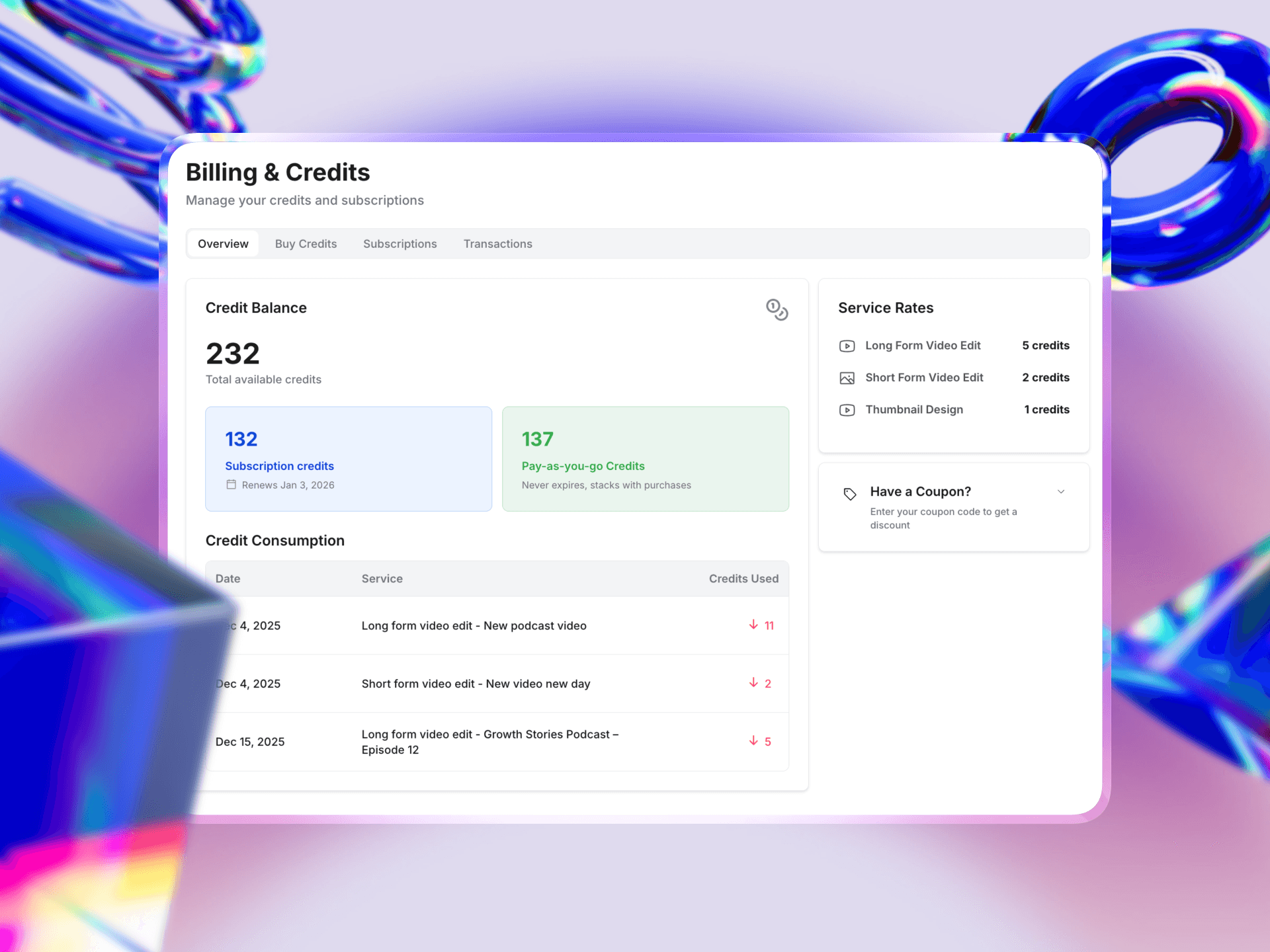
To see how many credits you have available, click on Billing in the left-hand sidebar. Your dashboard splits your balance into two distinct buckets:
Subscription Credits: These are the credits included in your monthly plan (Basic or Pro).
Important: These credits have a renewal date (e.g., "Renews Jan 3, 2026"). They reset every month, so be sure to use them before that date!
Pay-as-you-go Credits: These are extra credits you have purchased separately.
Advantage: These never expire and will "stack" (add on) to your existing balance.
2. How to Buy More Credits
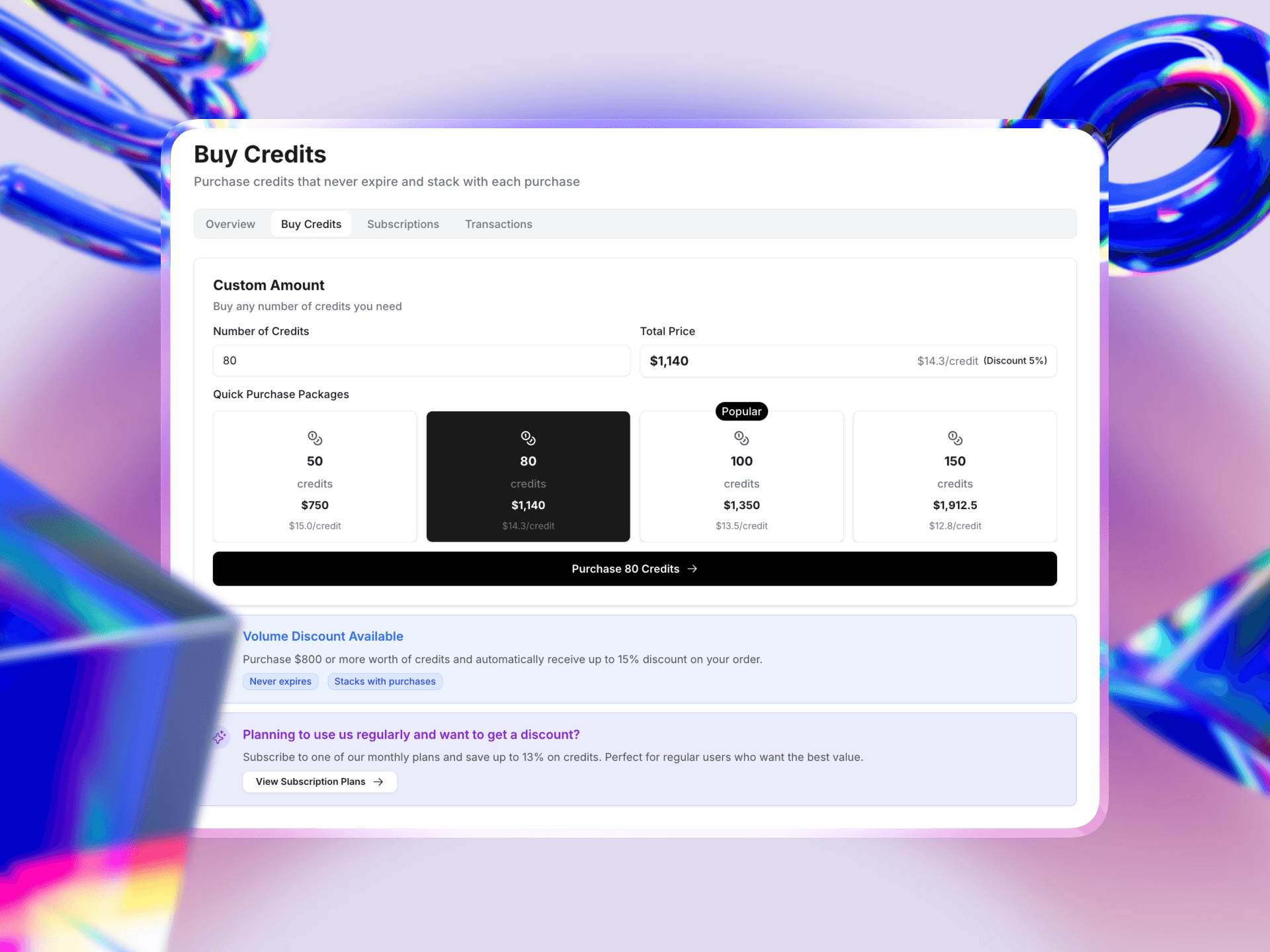
Running low on credits mid-month? You can instantly top up without changing your subscription plan.
Navigate to the Billing section and click the Buy Credits tab at the top.
Choose an Amount:
Custom Amount: Type in the exact number of credits you need (e.g., 80) to see the total price.
Quick Packages: Select a pre-set bundle, such as 50, 80, 100, or 150 credits.
Volume Discounts: The more you buy, the cheaper the cost per credit becomes.
Example: Buying 150 credits drops the price to $12.8/credit.
Bulk Rule: Orders over $800 automatically receive up to a 15% discount.
3. Tracking Your Spending
If you want to know exactly where your credits went, scroll down to the Credit Consumption section on the Billing Overview page.
Detailed Log: This list shows every transaction, including the date, the specific project name (e.g., "Growth Stories Podcast"), and the exact number of credits deducted.
Transparency: You can see exactly how much a specific task cost, such as 11 credits for a long-form edit or 2 credits for a short-form edit.
Quick Reference: Service Rates
Always visible on the right side of your Billing page is the Service Rates card. This is your cheat sheet for estimating costs before you submit a request:
Long Form Video Edit: Starts at 5 credits
Short Form Video Edit: 2 credits
Thumbnail Design: 1 credit